Building a Saleor App for AI-Powered Catalog Enrichment
Build a Saleor Dashboard widget that reads product context and uses an LLM to suggest structured attribute values staff can review and apply.
Most catalog problems start small: missing material values, inconsistent size attributes, supplier descriptions pasted into SEO fields, and product facts buried in free text. Over time those gaps become broken filters, rejected marketplace feeds, manual cleanup, and product data that downstream tools cannot reliably read.
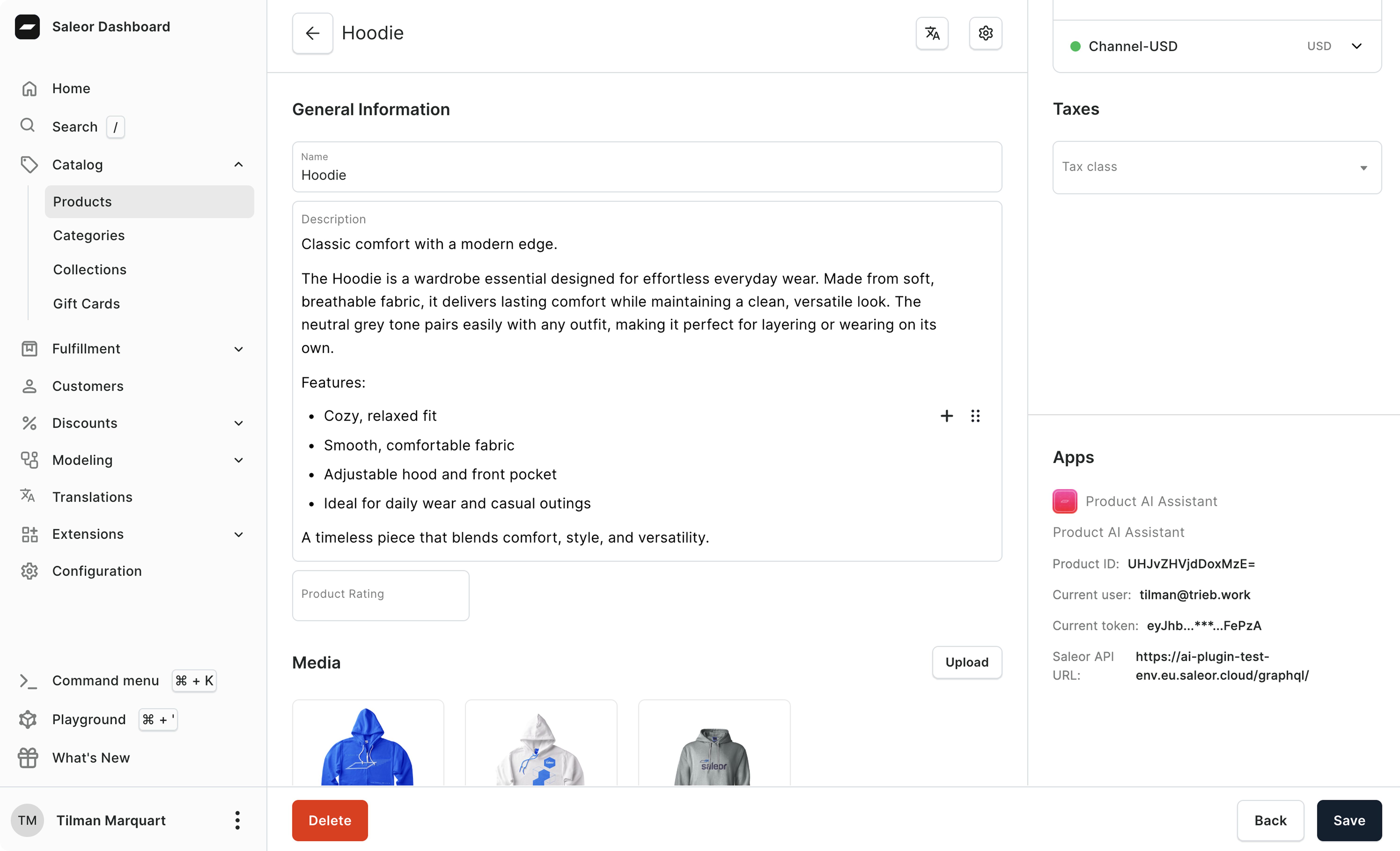
This tutorial walks through a small Saleor App that adds a product details widget to the Saleor Dashboard. The widget reads an existing product description, finds buried information such as publisher, weight, dimensions, or format, and proposes matching structured attribute values. Each suggestion includes a short evidence quote, and nothing is written back until a staff user reviews it and clicks Apply.
The full demo app is open source on GitHub. The focus here is the architecture and code paths that prove the approach, not setup boilerplate.
The product data problem
"AI product description generator" is a familiar entry point. The harder, more useful problem is product data enrichment: structured attributes that drive storefront filters, marketplace feeds, SEO, recommendations, and agentic commerce surfaces where models read your catalog directly.
Common symptoms:
- A "Material" attribute exists on the product type but is filled on only 40% of products.
- "Publisher", "Narrator", or "Format" values exist in the description but not in the structured attribute set.
- Channel-specific feeds (Google, Meta, marketplaces) reject products because of incomplete required attributes.
- New product types are introduced faster than data teams can backfill the historical catalog.
The hard part is producing constrained, structured values that match Saleor's product model: the right attribute IDs, input types, and existing choice slugs.
Why the Saleor Dashboard is the right place for this
Catalog gaps are usually discovered while merchants edit products, review attributes, or prepare content for a channel. Keeping the workflow inside the Dashboard means:
- Staff can review suggestions in the same screen where they normally edit the product.
- The app can use Saleor's existing permission model (
MANAGE_PRODUCTShere). - We do not need to fork the Dashboard to add a new UI surface.
- Approved changes are written back through the same Saleor GraphQL API the Dashboard already uses.
A Saleor App gives us all of that without touching the Dashboard codebase.
App shape
Starting from the Saleor App Template
The Saleor App Template already includes the App SDK, App Bridge wiring, manifest handler, auth-token-persistence layer (APL), GraphQL Codegen, and a dev setup.
The full setup is documented in the Saleor App Template guide. Everything below is layered on top of it.
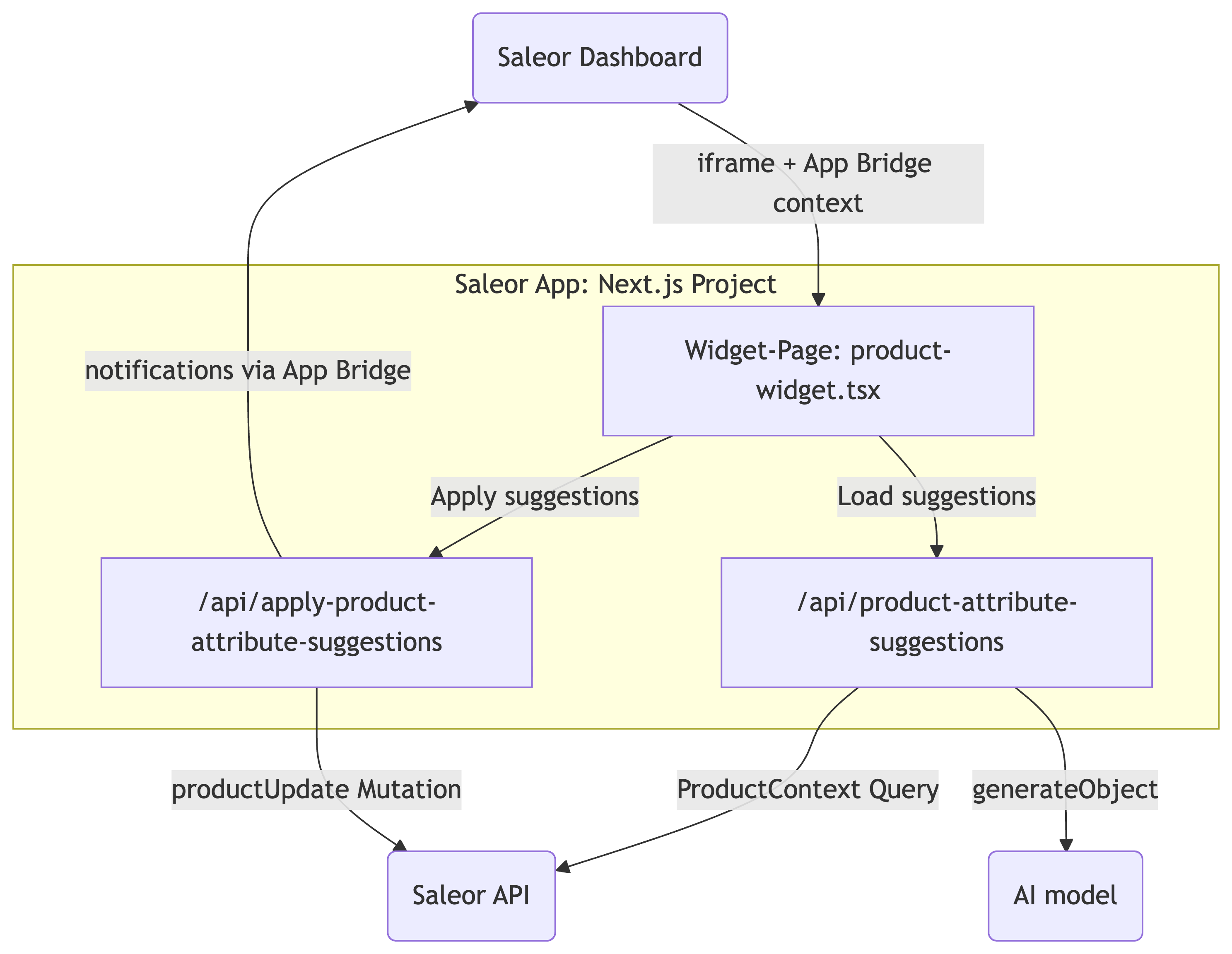
Two App Bridge details matter:
appBridgeStateis hydrated after the iframe handshake completes. Production code should gate rendering onappBridgeState?.ready(or fall back to a timeout so the UI never gets stuck).- The
productIdarrives as a query parameter on the iframe URL. Saleor injects it automatically for widget mount points.
Step 2: Register the widget in the app manifest
The manifest is what tells Saleor what the app contributes. Adding the widget is one extension entry:
Two details are easy to miss:
- The app-level
permissionsarray must include every permission used by any per-extensionpermissionsentry. Per-extension permissions can never exceed the app's own scopes. target: "WIDGET"makes Saleor render the extension as an inline panel on the product page instead of a navigation entry or modal action. Saleor documents the available widget mounting points in Extending the Dashboard with Apps.
The url points to /product-widget, backed by src/pages/product-widget.tsx. After reinstalling the app, the widget appears in the Dashboard's Apps sidebar on the product detail page.
Step 3: Reading product context with GraphQL
To produce useful suggestions, the AI call needs three things:
- The product itself (name, description, SEO fields).
- The set of attributes the product can have (defined on its product type), including allowed choices for dropdown/multiselect attributes.
- The set of attributes that are currently filled on this specific product, so we can compute what is missing.
A single GraphQL query covers all three:
AssignedAttribute is a discriminated union in Saleor. Each concrete type carries a different value shape, so selecting __typename keeps the generated TypeScript union narrowable. The server-side hasValue check can then be a type-safe switch instead of a guess.
Step 4: A protected API route on the server side
The widget never calls the LLM or Saleor directly. It talks to a server-side route protected by createProtectedHandler from the App SDK:
createProtectedHandler handles the request boundary: it verifies the staff JWT from useAuthenticatedFetch, rejects requests without MANAGE_PRODUCTS, resolves the app token from the APL entry for the calling Saleor API URL, and keeps each request scoped to the right Saleor instance.
The GraphQL call uses the long-lived app token, not the staff user's short-lived token. The staff permission check has already happened, and the app token gives the server a stable identity.
Step 5: Computing what is actually missing
Once we have product context, we compute the attributes that are defined on the product type but empty on this product:
hasValue switches on the __typename discriminator and returns true only when the corresponding value field is non-empty:
Generated types make this safer: adding a new assigned attribute type later becomes a compile-time concern instead of a silent fallthrough.
For the first iteration we restrict the model to attribute input types we know we can write back safely:
Anything else, such as numeric values with units, swatches, references, or files, is returned as unsupportedInputTypes so the UI can show a small "Skipped: ..." line.
Step 6: A grounded, structured AI call
The most important design decision is that the model is treated as an extractor, not an author. The prompt is built from product context plus a JSON-lines list of the missing attribute slots, including each attribute's id, inputType, and allowed choice slugs:
The model is called with structured output: a Zod schema describing the only shape accepted by the server. This example uses the Vercel AI SDK's generateObject with the OpenAI provider, but the same pattern works with any supported provider.
This gives the workflow three useful guardrails:
- No hallucinated attribute IDs. The model sees a closed list of attribute slots.
- No invented dropdown values. Choice-based attributes must use existing Saleor choice slugs.
- Evidence per suggestion. Every suggestion carries a short quote from the product description.
The schema's nullable value carriers (valueString, valueStrings, valueBoolean) are normalized server-side into a strict per-inputType discriminated union before they reach the UI:
This is where AI output becomes regular, validated TypeScript data. Anything that fails the per-type checks is dropped.
Step 7: Showing suggestions in the widget
With the API route in place, the widget stays small. On mount, and whenever productId changes, it calls /api/product-attribute-suggestions and renders the results.
useAuthenticatedFetch automatically attaches the staff JWT and saleor-api-url headers to each request, so the protected handler has the context it needs.
For an audiobook whose description ends with "Published by Saleor Publishing", the widget can suggest the missing publisher attribute and show that quote as evidence next to the Apply button.
Step 8: Applying approved suggestions
Applying suggestions is a separate protected route. It re-validates the incoming payload with a Zod discriminated union, maps each approved suggestion into Saleor's AttributeValueInput shape, and calls productUpdate. No write logic lives in the client.
The mutation itself is small:
productUpdate.errors is checked explicitly. Saleor mutations can report validation failures inside the response body even on a 200 OK, so the error array is the source of truth.
When the mutation succeeds, the widget dispatches a Dashboard notification through App Bridge. The toast appears outside the iframe in the Dashboard's own notification system:
The toast tells the user to reload because the Saleor Dashboard caches product data via Apollo. Even internal navigation can keep showing stale values until a full browser reload.
The key pattern is the boundary around the model: AI calls happen server-side, the model sees the actual product type instead of a blank slate, choice-based attributes use Saleor choice slugs, and the staff user stays in control. A production version could add per-suggestion checkboxes, inline editing, rejection reasons, or an audit log without changing the core architecture.
Where this can go
This demo focuses on one product page and one enrichment task, but the same pattern can support:
- Bulk catalog enrichment for product imports or migration cleanup.
- Attribute completeness scoring by product type, category, channel, or marketplace.
- Feed readiness checks for marketplaces, product ads, and AI-driven commerce channels.
- Review queues where rejected suggestions improve future prompts and rules.
AI is more useful when it sits close to the commerce model. Saleor's app system gives you a clean place to put that intelligence: inside the Dashboard, next to the data, behind the right permissions, and close to the final mutation.
Try it yourself
The demo app is open source and includes the GraphQL fragments, protected API routes, manifest entry, and a working pnpm dev setup with ngrok for local Saleor Cloud installs.
- Demo app: trieb-work/saleor-product-ai-assistant-app
- Saleor docs: Developing Apps, Extending the Dashboard with Apps
- App SDK: saleor/saleor-app-sdk
- Author: Tilman Marquart on LinkedIn